Critical Appraisal in RevProHub
 by Shemsedin Amme
Published on August 27, 2026
Moudle 3: Practical Session: Quality Appraisal in RevProHub
Critical Appraisal Hands-On
Group Activity
90 minutes
Practical Session Objectives:
By the end of this hands-on session, participants will be able to:
By the end of this hands-on session, participants will be able to:
- Navigate the RevProHub Quality Assessment Dashboard
- Assign QA tools to reviewers for pending studies
- Conduct risk of bias assessments using standardized tools (ROBINS-I, RoB 2)
- Identify and resolve conflicts in quality appraisal using the Mediator role
- Generate and export QA summary reports with visualizations
- Import/export QA data for offline assessment
Part 1: Quality Assessment Dashboard
Navigate to: Main Project Dashboard → Conducting Phase → Quality Assessment Dashboard

Figure 1: Quality Assessment Dashboard – key stats and navigation cards.
53
All Studies for QA
0
My In-Progress Tasks
1
Conflicts Pending
Inter-Rater
Kappa (Tool Select)
1 Create QA tool if not done: Navigate to Planning → Quality Appraisal Form Planning (Session 2.6.11). Select a standard template or build custom.
2 Studies automatically appear: Studies that pass full-text screening are auto-injected into the QA queue.
3 Management & Bulk Actions: Assign all pending studies to reviewers using the bulk assign form (select QA tool, reviewers, start/end dates).
Part 2: Conducting a Quality Assessment
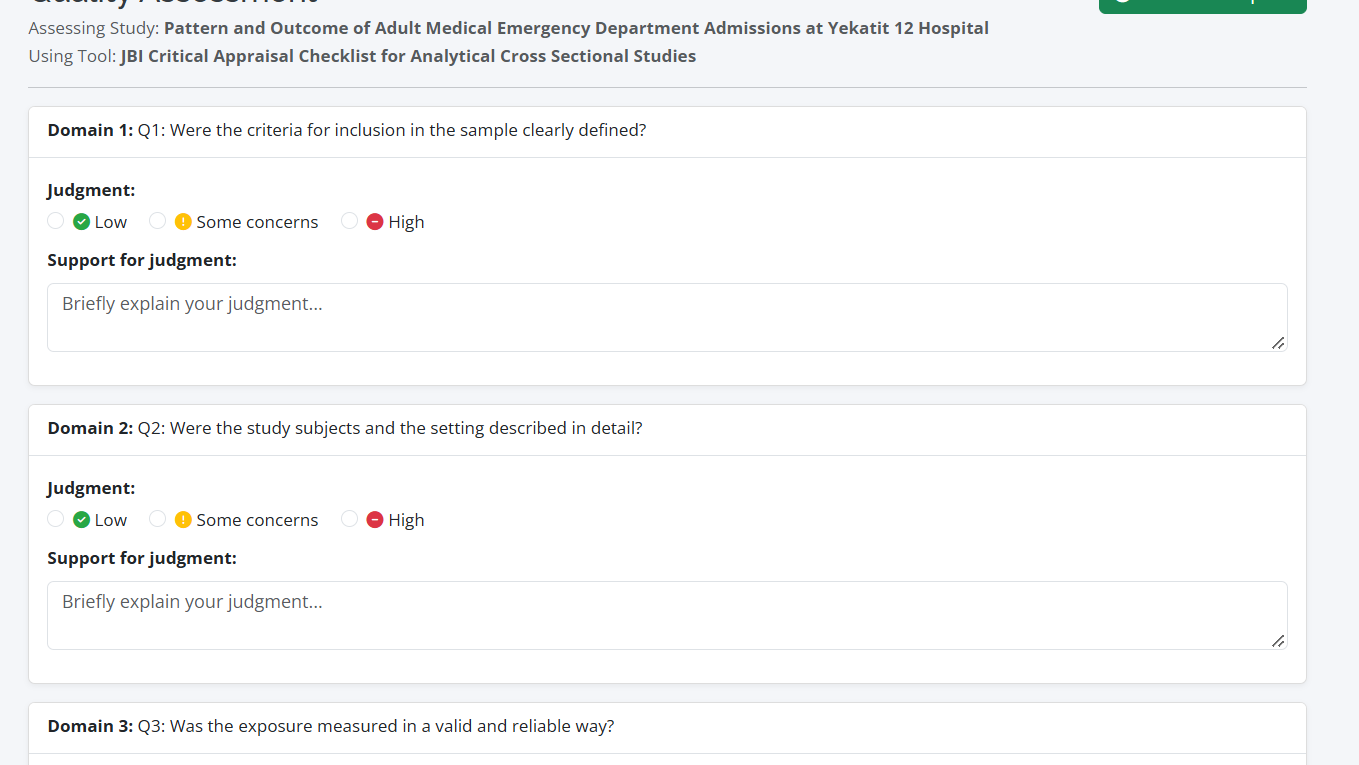
Each reviewer accesses assigned studies via the My In-Progress Tasks card or the Studies in Quality Assessment table.
Assessing: Metabolic dysfunction-associated steatotic liver disease (MASLD)
Using Tool: ROBINS-I (Risk Of Bias In Non-randomized Studies - of Interventions)
Domain 1: D1: Bias due to confounding
Guidance: Consider whether the most important confounding domains were controlled for in the design or analysis.
Domain 2: D2: Bias in selection of participants into the study
Guidance: Consider whether the study start and participant recruitment could have introduced selection biases.
Overall Risk of Bias Judgment
Auto-save feature: Each domain rating and support text is auto-saved every 30 seconds. The "Mark as Complete" button finalizes the assessment.
Part 3: Conflict Resolution (Mediator Role)
When two reviewers provide different ratings for the same study, a conflict is flagged. A Mediator (assigned only to conflicting studies) resolves discrepancies.
famme rated:
Low
"No rationale provided."
shamsuamme rated:
Some concerns
"No rationale provided."
🔧 Mediator Resolution Steps:
1. Select Final Judgment from dropdown (Low / Some concerns / High)
2. Enter Resolution Rationale (optional)
3. Click Resolve – the conflict status updates to "Resolved"
1. Select Final Judgment from dropdown (Low / Some concerns / High)
2. Enter Resolution Rationale (optional)
3. Click Resolve – the conflict status updates to "Resolved"
Inter-Rater Reliability (Kappa): The dashboard calculates Cohen's Kappa for any selected QA tool, helping teams monitor agreement consistency.
Part 4: Bulk Operations – Import/Export QA Data
Navigate to: Quality Assessment Dashboard → Import/Export Data
Bulk Assessment via CSV
Download template → Fill offline → Import back
Download template → Fill offline → Import back
Conflict Resolution via CSV
Export conflicts → Resolve in CSV → Re-import resolutions
Export conflicts → Resolve in CSV → Re-import resolutions
1 Select QA Tool (e.g., ROBINS-I)
2 Download Template (contains all pending studies assigned to you)
3 Complete ratings offline in CSV → Upload file → Click Import Assessments
This is especially useful for large datasets or when working in low-connectivity environments.
Part 5: QA Summary & Risk of Bias Visualization
Navigate to: Quality Assessment Dashboard → View Visualization

Figure 2: Risk of Bias summary chart with domain-level and overall judgments.
| Study Identifier | D1 | D2 | D3 | D4 | D5 | D6 | D7 | Overall |
|---|---|---|---|---|---|---|---|---|
| Titus GJ (2025) | Some concerns | Low | Moderate |
📊 Export Options: PDF, DOCX, or CSV. Also "Add to Manuscript" button injects the summary directly into the Manuscript Editor.
🧪 Group Hands-On Activity (45 min)
- Access QA Dashboard: In your training project, go to Conducting Phase → Quality Assessment Dashboard.
- Bulk Assign Studies: Select the QA tool created in Session 2.6.11 (e.g., ROBINS-I). Choose 2 reviewers. Assign all pending studies. Verify that assigned reviewers receive email notifications.
- Conduct an Assessment (Role-play as Reviewer): One team member accesses "My In-Progress Tasks". Open a study. Rate 3 domains with different judgments and provide support text. Observe auto-save. Click "Mark as Complete".
- Simulate a Conflict: A second reviewer (different person) assesses the same study but gives different ratings for at least 2 domains. After both complete, check the "Conflicts Pending" card – the study should appear.
- Mediator Resolution: A third team member (Mediator role) navigates to Conflicts Pending → Resolve. Select final judgments for each conflicting domain, add rationale, and resolve.
- Generate QA Summary: Go to Visualization. Filter by the tool. Review the bar chart and summary table. Export as PDF.
- Bulk CSV Import (optional): From Manage Data, download the assessment template for the tool. Fill 2-3 rows with ratings. Re-import and verify updates.
Debrief Questions:
- How does the Mediator role differ from a traditional "senior reviewer" approach?
- What is the advantage of calculating Inter-Rater Reliability (Kappa) during QA?
- How can the CSV bulk import feature support large reviews with geographically distributed teams?
- Why is it important that studies are injected into QA only after passing full-text screening?
Connecting to Critical Appraisal Theory (Session 3.2)
Key Concepts Applied in RevProHub QA Module:
- Internal Validity: Each domain (e.g., confounding, selection bias) directly assesses internal validity.
- External Validity: Considered in overall judgment and notes field.
- Bias Types: ROBINS-I explicitly addresses selection bias, performance bias, detection bias, attrition bias, and reporting bias.
- Standardized Tools: RevProHub provides JBI, Cochrane ROBINS-I, RoB 2, Newcastle-Ottawa, and CASP templates.
QA Module Completion Checklist:
✔ QA tool created/selected in Planning Phase (Session 2.6.11)
✔ Studies assigned to reviewers (bulk or individually)
✔ Assessments completed with domain ratings and support text
✔ Conflicts resolved by Mediator
✔ QA summary exported and/or added to manuscript
✔ Understanding of CSV bulk import/export for offline workflows
✔ QA tool created/selected in Planning Phase (Session 2.6.11)
✔ Studies assigned to reviewers (bulk or individually)
✔ Assessments completed with domain ratings and support text
✔ Conflicts resolved by Mediator
✔ QA summary exported and/or added to manuscript
✔ Understanding of CSV bulk import/export for offline workflows
Next Practical Session: Data Extraction (using repeater logic for qualitative synthesis and two-phase extraction for quantitative outcome data).