Practical Guide: Data Extraction In RevProHub
 by Shemsedin Amme
Published on August 27, 2026
Practical Session: Data Extraction in RevProHub
Two-Phase Extraction
1‑to‑Many Repeater Logic
90 minutes
Practical Session Objectives:
By the end of this hands-on session, participants will be able to:
By the end of this hands-on session, participants will be able to:
- Navigate the RevProHub Data Extraction Dashboard
- Assign extraction tasks to reviewers (bulk and individual)
- Extract study characteristics and outcome data using structured forms
- Use AI-assisted extraction from full text
- Implement 1-to-many repeater fields for qualitative findings
- Resolve extraction conflicts using the Mediator role
- Export final consensus data for meta-analysis
Part 1: Data Extraction Dashboard
Navigate to: Main Project Dashboard → Conducting Phase → Data Extraction Dashboard
0
Ready to Extract
2
My In Progress
0
Pending Conflicts
0
Completed
N/A
Inter-Rater Reliability
1 Manage Forms: If no extraction form exists, the dashboard shows a setup alert. Create forms first in Planning → Extraction Form Planning (Session 2.6.12).
2 Assign All Pending: Use the modal to assign all awaiting studies to reviewers (select form, reviewers, start/due dates).
3 Studies Ready Table: Lists studies that passed screening, ready for extraction. Click "Extract" to begin.
Stats Cards Navigation: Click any card to navigate directly to the respective list (Ready Studies, My Extractions, Conflicts, Completed).
Part 2: Assigning Studies for Extraction
1 Click "Assign All Pending" button (or assign individually from Studies table).
2 Select Extraction Form (e.g., "Meta-Analysis of Effectiveness - Count Data").
3 Select Reviewer(s) – hold Ctrl/Cmd for multiple (enables dual extraction).
4 Set Start Date and Due Date (optional).
5 Click "Assign Queue" – reviewers receive email notifications and tasks appear in "My Extractions".
Dual extraction quality control: Assigning two reviewers to the same study enables automatic conflict detection and resolution, improving data accuracy.
Part 3: The Extraction Interface
Access via: My Extractions → Click study title → Extract with Form
Study Characteristics (Static – extracted once)
Qualitative Findings (1‑to‑Many Repeater Group)
Auto-save: Progress is auto-saved every 30 seconds. Use "Save Progress" button for manual save. Click "Submit Final Extraction" when complete.
Part 4: My Assigned Extractions
Navigate to: Data Extraction Dashboard → My In Progress card → My Extractions
| Title | Authors | Year | Status | Actions |
|---|---|---|---|---|
| Metabolic dysfunction-associated steatotic liver disease (MASLD)... | Knorr JP et al. | 2026 | in progress | |
| Evaluation of asthma control among adult patients... | Titus GJ et al. | 2025 | in progress |
🔍 Bulk actions: Select multiple studies to clear records or unassign yourself from extractions.
Part 5: Extraction Conflict Resolution (Mediator Role)
Reviewer A:
Intervention N1: 120
Events: 45
Intervention N1: 120
Events: 45
Reviewer B:
Intervention N1: 125
Events: 48
Intervention N1: 125
Events: 48
Mediator Final:
Inter-Rater Reliability (Kappa): Dashboard calculates Cohen's Kappa for any selected extraction form when sufficient paired data exists.
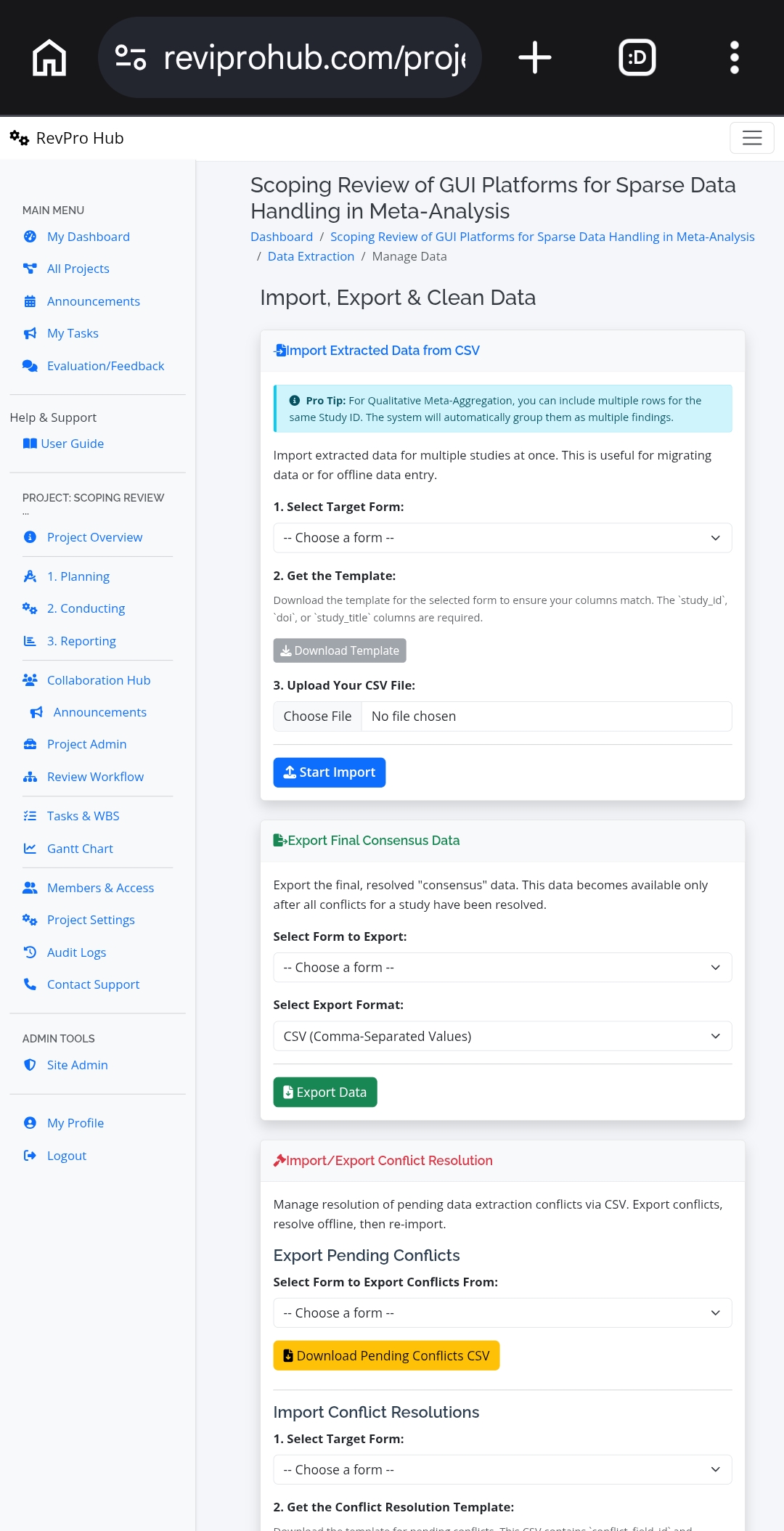
Part 6: Import, Export & Data Cleaning
Bulk Assessment via CSV
Download template → Extract offline → Import back
Download template → Extract offline → Import back
Conflict Resolution via CSV
Export conflicts → Resolve in CSV → Re-import resolutions
Export conflicts → Resolve in CSV → Re-import resolutions
Data Cleaning Utilities
Standardize dates, trim whitespace across all studies
Standardize dates, trim whitespace across all studies
📤 Export Final Consensus Data: Select form → Choose CSV or DOCX → Export resolved data for meta-analysis in R, SPSS, or RevMan.
Pro Tip for Qualitative Meta-Aggregation: When importing CSV data, include multiple rows for the same Study ID. The system automatically groups them as multiple findings under the repeater group.
Part 7: All Studies Ready for Extraction
Navigate from Dashboard → "Ready to Extract" card or "View List" button.
| ID | Title | Authors | Year | Status | Actions |
|---|---|---|---|---|---|
| 6002 | Evaluation and determinants of asthma control among adult patients... | Titus GJ et al. | 2025 | Ready | |
| 5999 | Metabolic dysfunction-associated steatotic liver disease (MASLD)... | Knorr JP et al. | 2026 | Ready |
🔎 Features: Search by title/author/year, sortable columns, pagination (10/25/50/100 per page), and individual study assignment.
Part 8: Studies with Pending Conflicts
Navigate from Dashboard → "Pending Conflicts" card → View All.
If no conflicts exist, the list shows "No studies have pending conflicts." Conflicts arise when two reviewers extract different values for the same field.
🧪 Group Hands-On Activity: Data Extraction (50 min)
- Access Extraction Dashboard: In your training project, go to Conducting Phase → Data Extraction Dashboard.
- Create/Verify Extraction Form: Ensure you have a form from Session 2.6.12 (e.g., "Meta-Analysis of Effectiveness - Count Data" or "Qualitative Synthesis with Repeater").
- Assign Studies (Project Manager role): Click "Assign All Pending" → select your form → choose two reviewers (e.g., two team members) → assign. Verify emails/tasks appear.
- Extract Data (Reviewer A): Go to "My Extractions" → open a study. Fill Study Characteristics (Author, Year, N1, N2, events). For the repeater group (if qualitative form), add 2-3 theme rows with illustrative quotes. Click "Save Progress", then "Submit Final Extraction".
- Extract Data (Reviewer B – same study): Repeat step 4 but introduce at least one discrepancy (e.g., different N1 or events).
- Simulate Conflict: After both submit, check Dashboard → "Pending Conflicts" should show the study with number of conflicts.
- Mediator Resolution: A third team member (Mediator role) navigates to Conflict Resolution page. Review side-by-side discrepancies, select final values, add rationale, and resolve each field.
- Export Final Data: After resolution, go to "Manage Data" → Export Final Consensus Data → select form → export CSV. Open in Excel to view cleaned, reconciled dataset.
- (Optional) AI Extraction Test: Paste a study abstract into the AI Extraction Tools textarea, click "AI Extract Data", and observe auto-populated fields.
Debrief Questions:
- How does two-phase extraction (Study Characteristics + Outcome Data) improve data quality?
- What is the advantage of the 1-to-many repeater logic for qualitative evidence synthesis?
- How does the Mediator conflict resolution workflow reduce bias compared to senior reviewer overriding decisions?
- When would you use CSV bulk import vs. online extraction?
- How can Inter-Rater Reliability (Kappa) help monitor extraction quality across your team?
Connecting to Data Extraction Theory (Session 3.3)
Key Concepts Applied in RevProHub Extraction Module:
- Two-Phase Approach: Study characteristics (static) separated from outcome data (repeatable) – aligns with Cochrane/JBI recommendations.
- Standardized Forms: Prevents ad-hoc extraction, ensures consistency across reviewers.
- Dual Extraction: Two independent reviewers + conflict resolution = reduced data entry errors.
- 1-to-Many Repeater Logic: Enables qualitative meta-aggregation (multiple findings per study).
- AI Assistance: Speeds up extraction by auto-populating fields from full text (human verification still required).
Data Extraction Module Completion Checklist:
✔ Extraction form created in Planning Phase (Session 2.6.12)
✔ Studies assigned to reviewers (bulk or individual)
✔ Study characteristics extracted and saved
✔ Outcome data extracted (quantitative) OR themes/quotes extracted (qualitative with repeater)
✔ Conflicts resolved by Mediator
✔ Final consensus data exported for analysis
✔ Understanding of CSV bulk import for offline extraction
✔ Extraction form created in Planning Phase (Session 2.6.12)
✔ Studies assigned to reviewers (bulk or individual)
✔ Study characteristics extracted and saved
✔ Outcome data extracted (quantitative) OR themes/quotes extracted (qualitative with repeater)
✔ Conflicts resolved by Mediator
✔ Final consensus data exported for analysis
✔ Understanding of CSV bulk import for offline extraction
Next Practical Session: Synthesis & Reporting (Meta-analysis, PRISMA diagram, Manuscript Editor).