Identification and Importing Sources module
 by Shemsedin Amme
Published on August 27, 2026
Guides: Identification & Importing Sources
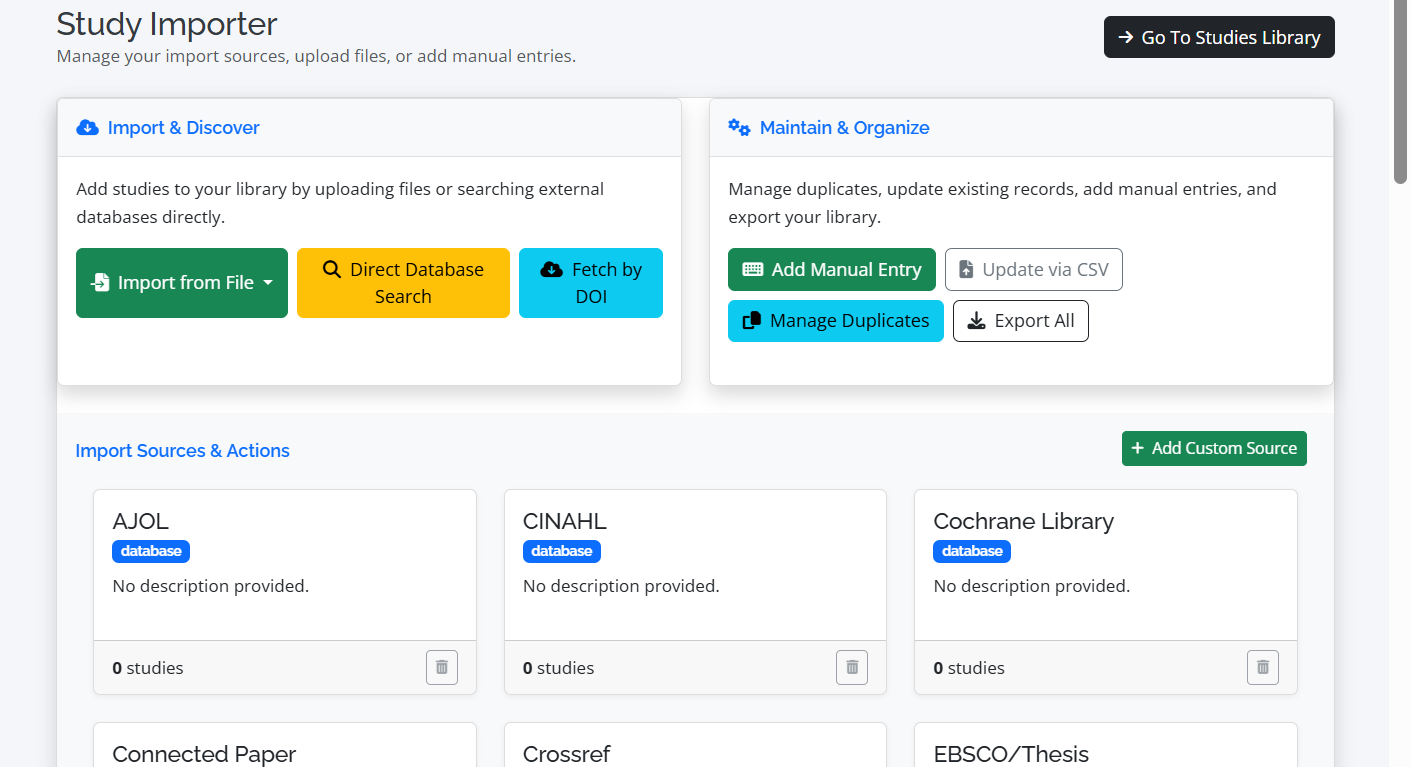
Study Importer
25+ Predefined Sources
60 minutes
Guides Objectives:
By the end of this hands-on session, users will be able to:
By the end of this hands-on session, users will be able to:
- Navigate the RevProHub Study Importer Dashboard
- Import studies from multiple file formats (RIS, CSV, JSON, BibTeX, XML, TXT)
- Conduct direct database searches using the Search & Query Builder
- Add manual study entries for grey literature or unpublished data
- Create custom import sources for specialized searches
- Update existing studies via CSV bulk import
- Export the complete study library for backup or external use
- Navigate to Deduplication and Studies Library for next steps
Part 1: Study Importer Dashboard
Navigate to: Main Project Dashboard → Conducting Phase → Studies → Importer Dashboard
Import & Discover
Upload files or search databases
Maintain & Organize
Deduplication, manual entries, updates
PubMed
77 studies imported
Studies Library
View all imported references
📁 Supported File Formats: CSV, JSON, RIS (Reference Manager), BibTeX (.bib), XML, Plain Text (.txt). Max file size: 10MB.
🔍 Direct Database Search: Integrates with Search & Query Management – build and execute validated queries across 10+ databases.
Part 2: Predefined Import Sources
RevProHub comes preloaded with 25+ academic databases and search sources. Each source can be selected when importing or manually adding studies.
Database Categories:
- Academic Databases: PubMed, Scopus, Web of Science, Embase, Cochrane Library, CINAHL, PsycINFO
- Regional & Open Access: AJOL, HINARI/Research4Life, EuroPMC, Semantic Scholar, The Lens
- Grey Literature & Registers: WHO Clinical Trials, Grey Literature, Registers, Google Scholar
- Citation Tools: Citation Chaser, Connected Paper, Research Rabbit
- Manual Sources: Custom Sources, Hand Search, Organization, Other
Part 3: Import Methods – Step-by-Step
Method 1: Import from File
1 Click "Import from File" dropdown → select format (CSV, JSON, RIS, BibTeX, XML, TXT).
2 Select the target import source from the predefined list (e.g., PubMed, Scopus).
3 Upload the file containing citations exported from your reference manager or database.
4 System processes and adds studies to your library with source attribution.
Pro Tip: Export citations from EndNote, Zotero, or Mendeley in RIS format for seamless import into RevProHub.
Method 2: Direct Database Search
1 Click "Direct Database Search" button → redirects to Search & Query Builder.
2 Build or load a saved search query (using PICO from Planning Phase).
3 Execute search against selected database (PubMed, Scopus, Embase, etc.).
4 Select results and import directly into project library.
AI Integration: The Search Query Builder uses AI to translate PICO questions into validated database syntax. Refinement Chat Room allows iterative search improvement.
Method 3: Add Manual Entry
1 Click "Add Manual Entry" button → opens modal form.
2 Select import source (e.g., Grey Literature, Hand Search, Organization, Custom Sources).
3 Fill in bibliographic details: Title (required), Authors, Year, Journal/Source, DOI, Abstract.
4 Click "Add Entry" – study appears in library with source attribution.
Use Case: Perfect for unpublished reports, conference proceedings, clinical trial registrations, or studies obtained through personal communication.
Part 4: Maintain & Organize Your Library
Manage Duplicates
Scan, detect, and resolve duplicate records
Scan, detect, and resolve duplicate records
Update via CSV
Bulk update existing study metadata
Bulk update existing study metadata
Export All
Download full library as CSV
Download full library as CSV
Add Custom Source
Create project-specific import sources
Create project-specific import sources
Deduplication Workflow
1 Navigate to "Manage Duplicates" from Importer Dashboard or Actions menu.
2 System automatically scans for potential duplicates based on title, DOI, and author similarity.
3 Review duplicate groups side-by-side → select master record → confirm duplicates.
4 Mark as unique if records are not duplicates.
Duplicate Status: Each study in the library shows "Unique", "Potential Duplicate", or "Duplicate" badge for easy tracking.
Bulk Update via CSV
1 Click "Update via CSV" from Actions dropdown.
2 Download sample update CSV template for column reference.
3 Edit CSV – each row must have
study_id or doi to match existing records.4 Upload updated CSV – system applies changes to matched studies only.
✅ Updatable fields: title, authors, publication_year, journal_name, abstract_text, and more.
Part 5: Studies Library – Complete Reference Management
Navigate to: Importer Dashboard → Go To Studies Library or Actions → Studies Library
Library Features:
- Search & Filter: Real-time search by title or author, sort by any column (ID, Title, Authors, Year, Source, Deduplication Status, TA/FT Status).
- Bulk Actions: Select multiple studies → delete selected (confirmation modal with study titles).
- Pagination: 25, 50, 100, or All entries per page.
- Study Details: Click "View" button to see full metadata, abstract, keywords, screening decisions, and full-text document uploads.
- External Actions: Quick links to Data Extraction and Quality Assessment from the library (conditional on screening status).
| ID | Title | Authors | Year | Source | Deduplication | TA Status | Actions |
|---|---|---|---|---|---|---|---|
| 5996 | Comparison of Clinical Efficacy... Tirzepatide, Liraglutide and Semaglutide | Ciudin A et al. | 2026 | PubMed | Unique | Awaiting Screening | |
| 5995 | Genetic Evidence for GLP1R Agonists in Non-Ischaemic Heart Failure | Le NN et al. | 2026 | PubMed | Unique | Awaiting Screening | |
| 5888 | Weight Loss Outcomes in a Real-World Setting | Bailey B et al. | 2020 | Embase | Unique | Included |
Part 6: Study Details Page
Comparison of Clinical Efficacy and Safety of Tirzepatide, Liraglutide and Semaglutide...
Ciudin A; Sapin H; Fan L; Dimitriadis GK; Zimner-Rapuch S; Curteis T; Clark LJ; Rubinstein M; Johansson E | Advances in therapy (2026)
Abstract
Recent pharmacological options for weight management include GLP-1 receptor agonists... tirzepatide 10 and 15 mg associated with improved efficacy vs liraglutide... weight reduction outcomes...
Recent pharmacological options for weight management include GLP-1 receptor agonists... tirzepatide 10 and 15 mg associated with improved efficacy vs liraglutide... weight reduction outcomes...
Keywords:
Glucagon-like peptide Network meta-analysis Obesity Tirzepatide Weight reduction
Glucagon-like peptide Network meta-analysis Obesity Tirzepatide Weight reduction
Bibliographic Details
DOI: 10.1007/s12325-026-03523-5
Import Source: PubMed
Imported By: shamsuamme
Imported At: 3/28/2026
DOI: 10.1007/s12325-026-03523-5
Import Source: PubMed
Imported By: shamsuamme
Imported At: 3/28/2026
Review Status
Deduplication: Unique
TA Status: Awaiting Screening
FT Status: Awaiting Screening
Extraction: Not Started
QA: Not Started
Deduplication: Unique
TA Status: Awaiting Screening
FT Status: Awaiting Screening
Extraction: Not Started
QA: Not Started
Full-Text Documents: Upload PDFs directly to studies. Supports multiple documents per study with descriptions.
✏️ Edit Study: Click "Edit Study" button to update metadata directly from the details page.
Part 7: Creating Custom Import Sources
1 Click "Add Custom Source" button in Import Sources section.
2 Enter Source Name (e.g., "Local Journal Archive", "Institutional Repository").
3 Add optional Description (e.g., "Searched on [date] for unpublished theses").
4 Save – custom source appears in source selector for manual entries and imports.
Source Types: Predefined databases have "database" badge; custom sources get "manual" badge for easy identification.
Part 8: Export All Studies
📤 Click "Export All" button (Actions dropdown or Maintain & Organize card).
📄 System generates CSV containing all study metadata (ID, title, authors, year, source, deduplication status, screening status).
💾 Use for backup, external analysis, or sharing with collaborators.
🧪 Group Hands-On Activity: Importing Sources (40 min)
- Access Importer Dashboard: In your training project, go to Conducting Phase → Studies → Importer Dashboard.
- Review Predefined Sources: Scroll through the list of 25+ sources. Note the different badges (database, register, manual, citation).
- Import from RIS File: Download a sample RIS file from PubMed (export 5-10 citations). Click "Import from File" → RIS → select source "PubMed" → upload → import.
- Add Manual Entry: Click "Add Manual Entry". Select source "Grey Literature". Add a hypothetical unpublished report title, authors, year, and abstract. Save.
- Create Custom Source: Click "Add Custom Source". Name it "Training Custom Source" with description "For practice imports". Save and verify it appears in the source list.
- Navigate to Studies Library: Click "Go To Studies Library". Verify imported studies appear. Test search by title keyword.
- Export Library: Click "Export All" → download CSV. Open in Excel to review exported data.
- Update via CSV (optional): Download sample update CSV template. Edit one study's title. Upload to test update functionality.
- Navigate to Deduplication: Click "Manage Duplicates" – review any potential duplicate groups (if multiple imports performed).
Debrief Questions:
- What are the advantages of using predefined sources vs. manual source selection?
- When would you use a manual entry instead of file import?
- How does the custom source feature help with grey literature searching?
- Why is tracking import source important for systematic review transparency?
- How does the CSV update feature help maintain library accuracy over time?
Part 9: Integration with Review Workflow
From Import to Screening:
- 1️⃣ Import Studies (this session) → Studies added to library with source attribution
- 2️⃣ Deduplication → Remove duplicate records, mark unique studies
- 3️⃣ Screening Dashboard → Studies appear in "Pending Assignment" for Title/Abstract stage
- 4️⃣ Assign Reviewers → Studies distributed to team members
- 5️⃣ Screening → Include/Exclude decisions made, conflicts resolved
- 6️⃣ Quality Assessment & Data Extraction → Included studies proceed
Import Module Completion Checklist:
✔ Studies imported via at least one method (file, direct search, manual)
✔ Import source correctly attributed to each study
✔ Custom source created (if needed for grey literature)
✔ Library reviewed in Studies Library view
✔ Library exported as CSV for backup
✔ Deduplication reviewed and resolved
✔ Understanding of CSV update workflow for batch metadata corrections
✔ Studies imported via at least one method (file, direct search, manual)
✔ Import source correctly attributed to each study
✔ Custom source created (if needed for grey literature)
✔ Library reviewed in Studies Library view
✔ Library exported as CSV for backup
✔ Deduplication reviewed and resolved
✔ Understanding of CSV update workflow for batch metadata corrections
Next Guides: Deduplication & Cleaning – resolving duplicate records before screening.